
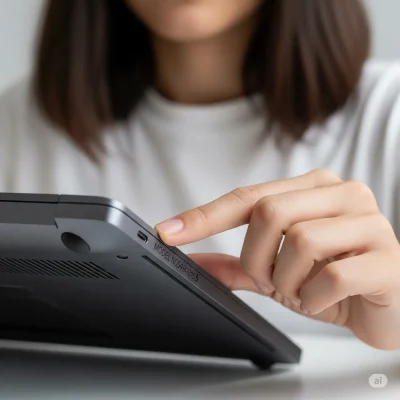
How to Find Your Laptop Model Number: A Comprehensive Step-by-Step Guide for Windows, Mac, and Linux
Are you trying to get an instant quote for your old laptop on CanItCash.com but are stuck on the model number field? Or perhaps you’re hunting down the right drivers or checking if an upgrade is compatible? Whatever the reason, knowing your laptop’s exact model number is the essential first step, and finding it can sometimes be tricky.
Don’t worry. This guide provides simple, foolproof methods to find your laptop’s model number in under a minute, whether you’re using Windows, macOS, or Linux.
⚡ Quick Answer: The 3 Fastest Ways
- On the Laptop Body: Flip your laptop over. The model number is almost always on a sticker or etched into the case, labeled as “Model,” “Product,” or “M/N.”
- In Windows: Click the Start button and type System Information. Open the app and look for the “System Model” line.
- On a Mac: Click the Apple logo in the top-left corner and choose “About This Mac.” The model name is shown right there.
Table of Contents – Quick Pick
Why Knowing How To Find Your Laptop Model Number Matters
Your laptop model number (often called the “product name” or “system model”) reveals specifics like the manufacturer (e.g., Dell, HP, Lenovo), series, and configuration. Understanding how to find your laptop model number is the key to unlocking these benefits, as this information is crucial for:
- Getting accurate quotes when selling used electronics on sites like CanItCash.com.
- Downloading the correct drivers or software from the manufacturer’s website.
- Checking warranty status or compatibility with accessories.
- Troubleshooting hardware issues with tech support.
Common scenarios: If your sticker is worn out or you’re dealing with a second-hand laptop, software methods save the day. Let’s dive in!
Method 1: Physical Inspection (Universal for All OS)
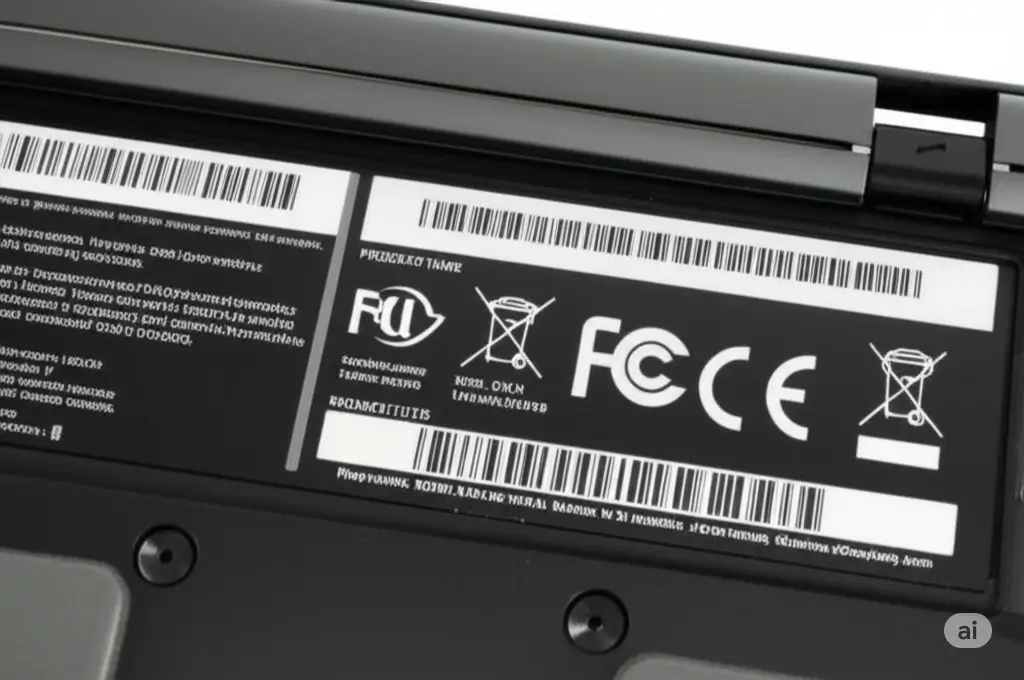
When learning how to find your laptop model number, the simplest way is often a physical inspection. Most manufacturers place a sticker or engraving with the model number directly on the laptop’s case, which you can find by flipping it over.
Steps:
- Power off your laptop and unplug it for safety.
- Turn it upside down and look for a white or silver sticker near the center or edges.
- The model number is usually labeled as “Model,” “Product,” or “M/N.” It might look like “Inspiron 15 5000” or “XPS 13 9310.”
- If removable, check under the battery compartment (remove the battery first).
- Still can’t find it? Look on the original packaging box or user manual.
Method 2: Using Windows Tools.
If the physical sticker is missing or unreadable, the next step is learning how to find your laptop model number using your computer’s built-in software. For Windows 10 or 11 users, several tools make this quick and easy.
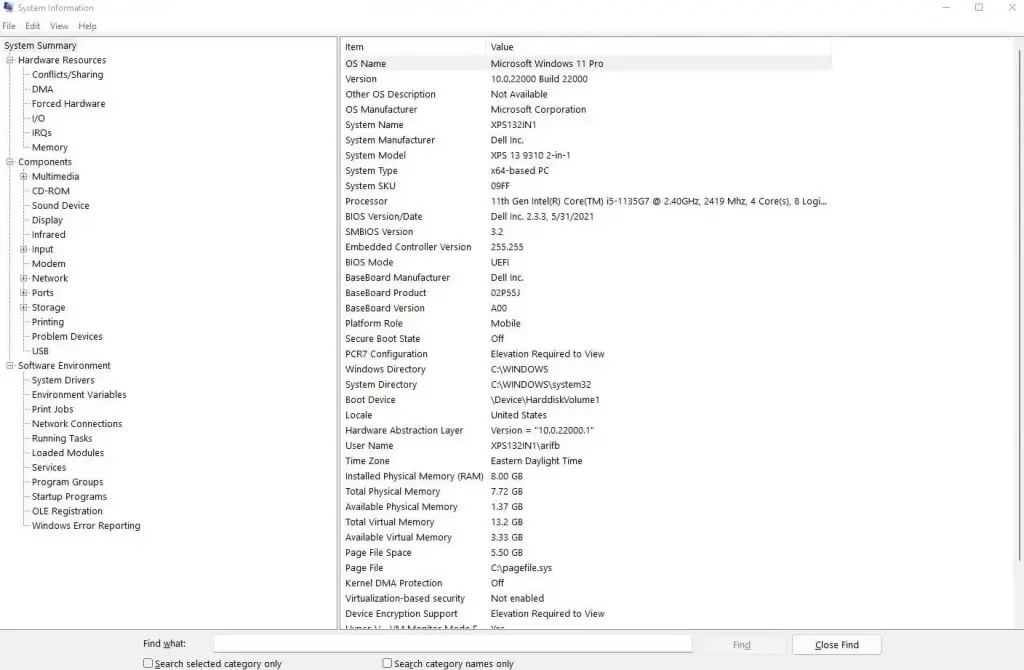
Sub-Method 2.1: System Information App
- Press Windows key + S, type “System Information,” and open the app.
- In the left pane, select “System Summary.”
- Look for “System Model” on the right— that’s your model number!
Sub-Method 2.2: Command Prompt
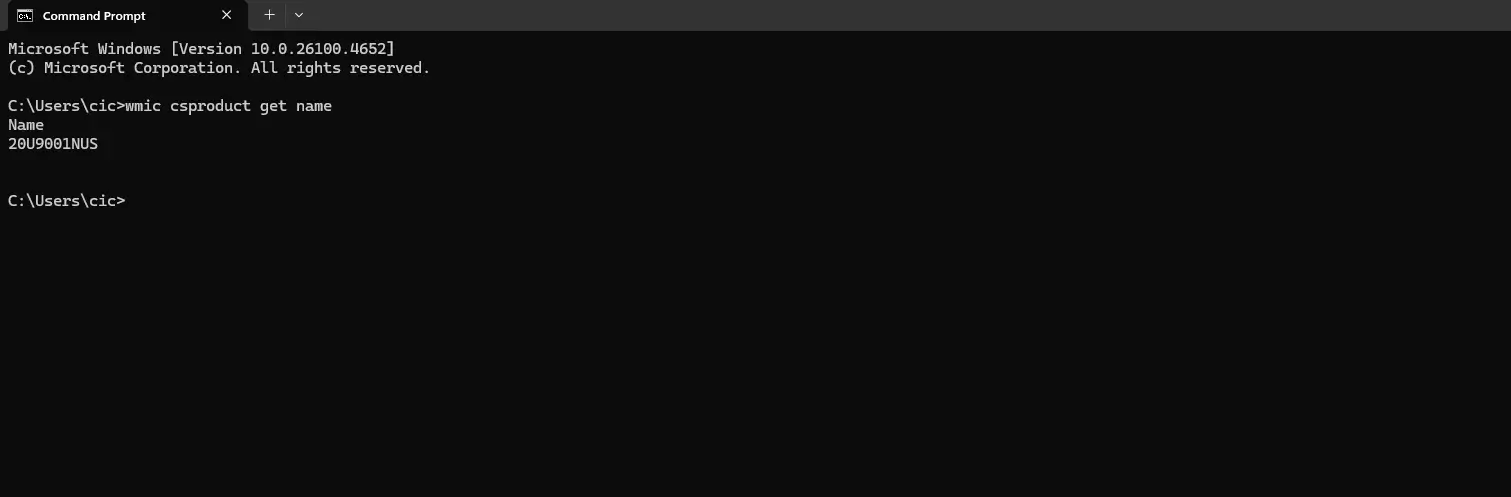
- Press Windows key + S, type “cmd,” right-click Command Prompt, and select “Run as administrator.”
- Type
wmicand press Enter.
csproduct get name - Your model number appears below.
Method 3: Using macOS Tools
For Apple MacBooks, it’s straightforward via the menu.
Steps:
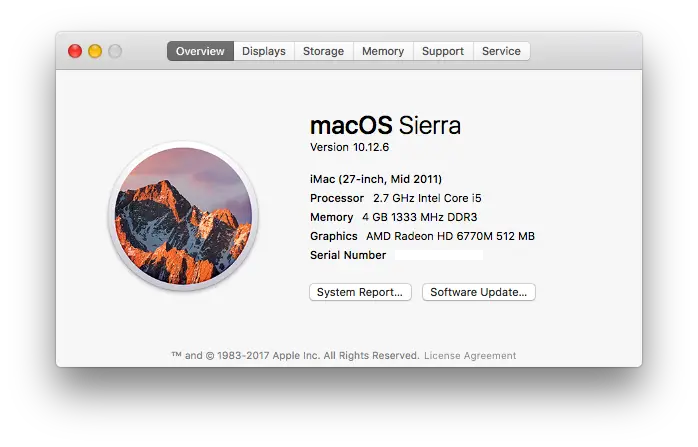
- Click the Apple logo in the top-left corner.
- Select “About This Mac.”
- The Overview tab shows your model (e.g., “MacBook Pro (13-inch, M1, 2020)”). You can cross-reference this with Apple’s official guide on identifying MacBook models to be certain.
Method 4: Using Linux Tools
Linux users can rely on terminal commands for quick results.
Sub-Method 4.1: dmidecode Command
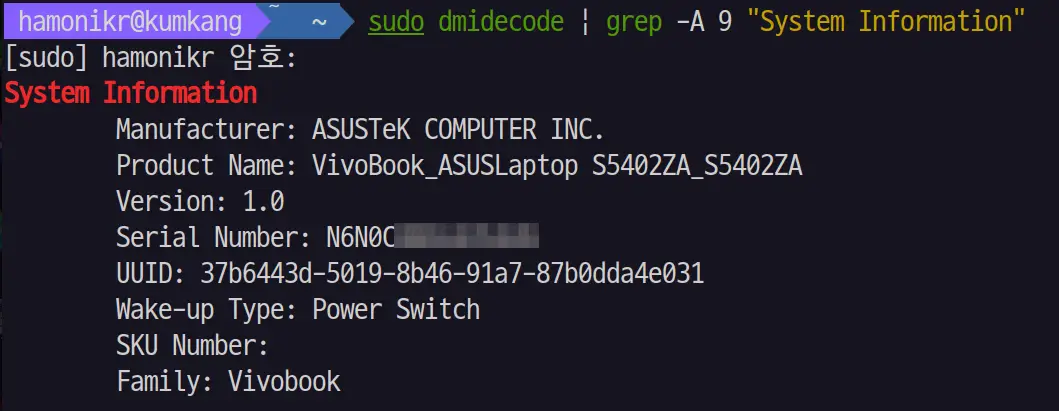
- Open Terminal (Ctrl + Alt + T).
- Type
sudoand press Enter (enter password if prompted).
dmidecode -s system-product-name - Your model appears.
Comparison Table: Methods by Operating System
| Method Type | Windows | macOS | Linux | Ease Level |
| Physical Sticker | Yes | Yes | Yes | Easy |
| System Menu/App | Yes | Yes | N/A | Easy |
| Command Line | Yes | N/A | Yes | Medium |
| BIOS/UEFI | Yes | N/A | Yes | Medium |
Troubleshooting Tips
- Sticker Missing? Use software methods or check the manufacturer’s site with your serial number.
- Laptop Won’t Boot? Rely on physical methods or BIOS/UEFI.
- Brand-Specific Tools: For HP, use the official HP Support Assistant to automatically find your product details; for Lenovo, visit their site and use “Detect Product.”
FAQs
Is the model number the same as the serial number?
No! The model is the product line (e.g., “Latitude 5490”); the serial number is the unique identifier for your specific unit. Custom laptops might not have a standard model—check the motherboard via third-party tools like the popular CPU-Z utility.
Can I find the model number without turning on the laptop?
Yes, the physical inspection method (checking the sticker on the bottom or the original box) works without powering on the device.
Why can’t I find it in BIOS?
BIOS access keys vary by brand. Common keys are F2, F10, or Del. Check your manufacturer’s website for the correct key for your specific model.
Ready to Cash In Your Laptop?
Now that you have your exact model number, get a free, instant quote on CanItCash.com. We offer fast payments and free shipping for your used electronics.
Need More Help? Find Your Model Number on the Official Manufacturer Site
If you can’t locate your model using our guide, please use these official support links to find the exact model or serial number for your specific laptop brand:
- Acer: Official Guide to Locate the Serial Number or Model
- Alienware: Dell Support for Product Model
- Apple: How to Find the Model of Your Apple Product
- Asus: Support Article for Finding Model/Serial Information
- Dell: Dell Support for Product Model
- Gigabyte: Guide to Product Model and Serial Number Identification
- HP: Guide to Finding Your HP Laptop Model Number
- Lenovo: How to Check Product or Model Specification
- Microsoft Surface: Find Out Which Surface Model You Have
- MSI: How to Identify Your MSI Device
- Razer: How to Identify a Razer Blade Model
- Samsung: How to Find the Model and Serial Number
- Sony: Sony Electronics Support Articles
- Toshiba: Toshiba Support Content
- Other Brands: Google and GPD also have resources available through their support systems.